
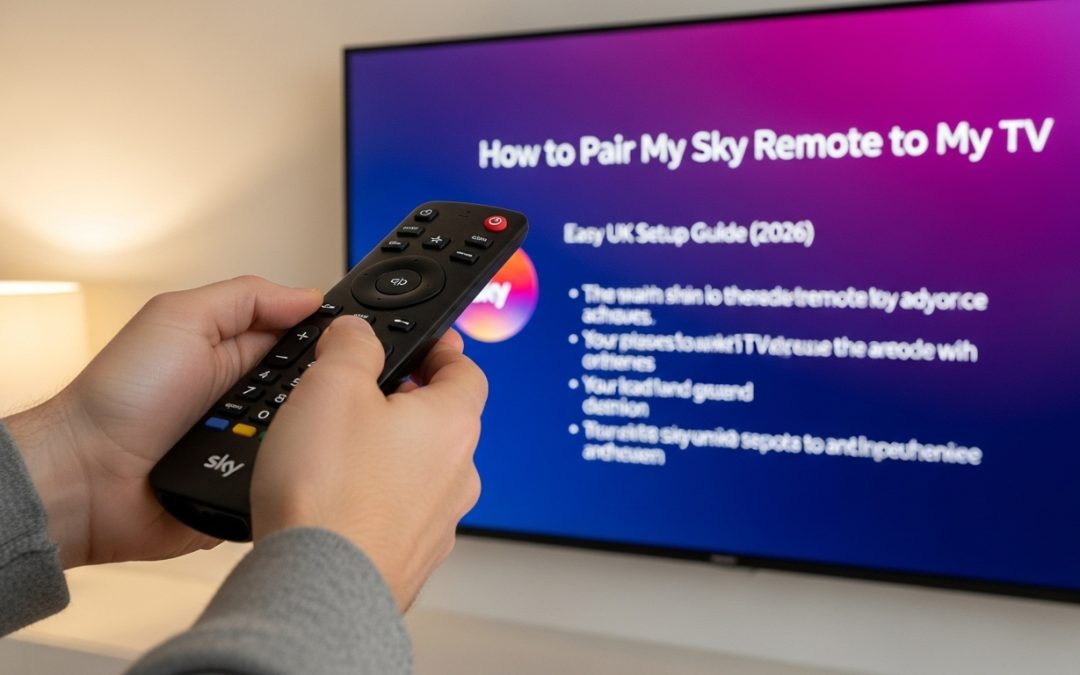
How to Pair My Sky Remote to My TV | Easy UK Setup Guide (2026)
Sky TV is a popular way to watch television in the UK. It brings hundreds of channels, movies, and sports to your screen. To control your Sky TV, you use a Sky remote. This small device lets you change channels, adjust the volume, and access all your favourite shows. Think of it as the captain of your TV ship!
Knowing how to connect, or “pair”, your Sky remote to your TV is very important. When paired correctly, your remote can talk to your Sky box and your television. This means you can use just one remote to control everything, making life much simpler. Without pairing, you might need two remotes: one for the Sky box and one for the TV, which can be confusing.

With over 10 years of experience in streaming technology, Amazon Fire TV, and smart TV platforms, Daniel specializes in Sky Glass, Firestick apps, and step-by-step methods to watch Sky content on Firestick devices in the UK.
 Add as a preferred source on Google
You will need to pair your Sky remote in a few common situations. If you get a brand new Sky TV, like a Sky Glass television, you will need to set up its remote. If your old remote breaks and you get a replacement, you must pair the new one. Sometimes, your remote might just stop working properly, and pairing it again can fix the problem.
This article will help you with all of these situations. We will give you clear, step-by-step solutions for every type of Sky remote. By the end, you will know exactly how to get your remote working perfectly with your TV.
Which Sky Remote Do You Have? (Important First Step)
Before you start, you must know which Sky remote you are holding. Sky has made different remotes for their different TV services. Using the wrong instructions for your remote will not work, so this first step is very important.
2.1 Types of Sky Remotes in the UK
There are four main types of Sky remotes in the UK today. The Sky Q Remote is for the Sky Q box. It is black, has a circular navigation pad, and dedicated buttons for Netflix and Sky Sports. The Sky Glass Remote comes with the Sky Glass TV. It is also black but feels more solid, has a circular touchpad, and lacks number buttons. The Sky Stream Remote is for the Sky Stream puck. It looks very similar to the Sky Q remote but is slightly smaller. Finally, you might have an older Sky HD Remote. These are often silver or black, with lots of numbered buttons and a simpler design.
Glass TV
Before you start, it’s helpful to know about the two main types of reset. A soft reset is like restarting your computer. It fixes minor problems without deleting your apps or settings.
A factory reset is a bigger step. It returns your TV to how it was when you first bought it. A factory reset will remove all your installed apps and personal settings. It will also sign you out of your Sky account.
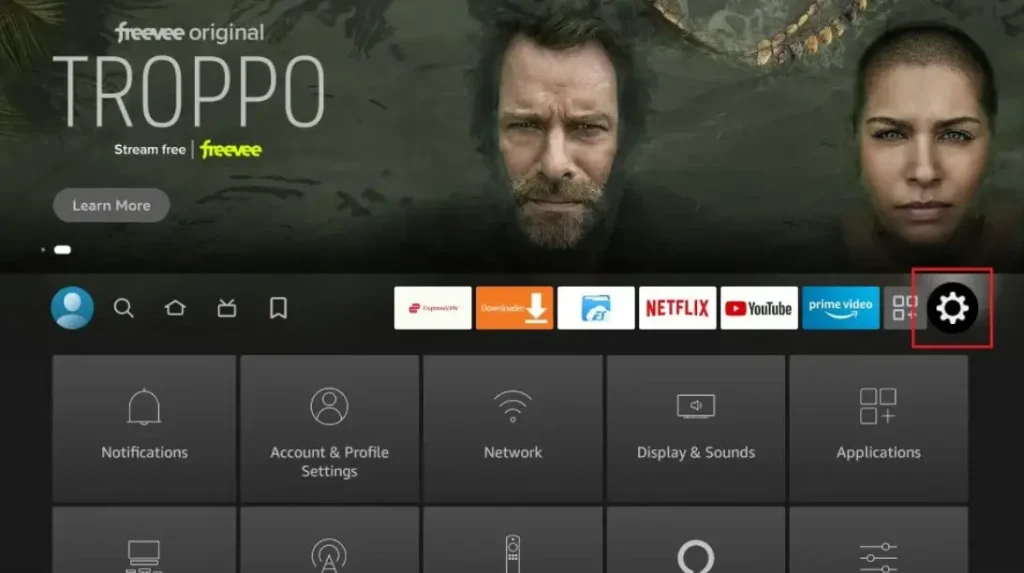
Step 3: Select the Find menu
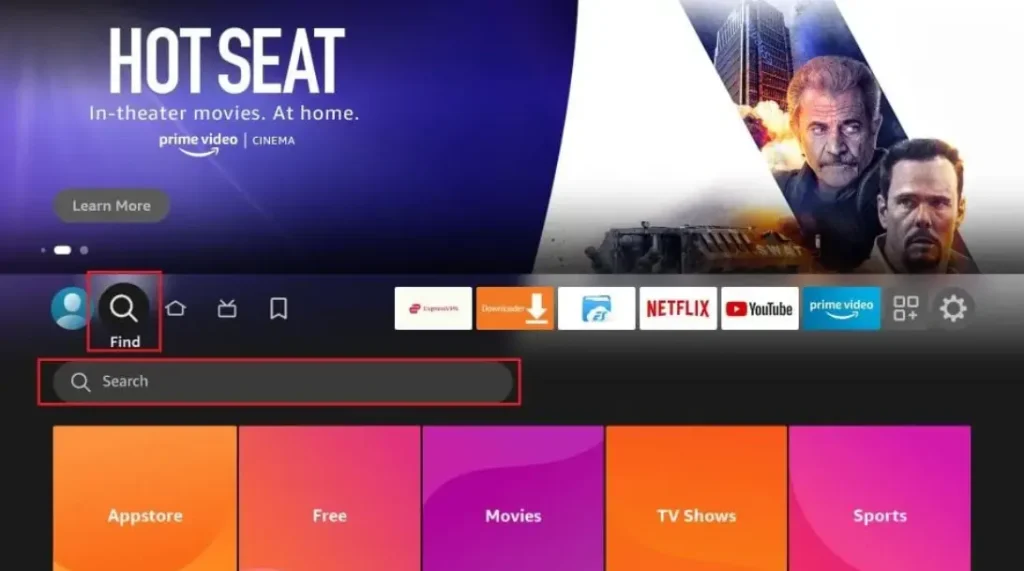
Step 4: Click on the Search option
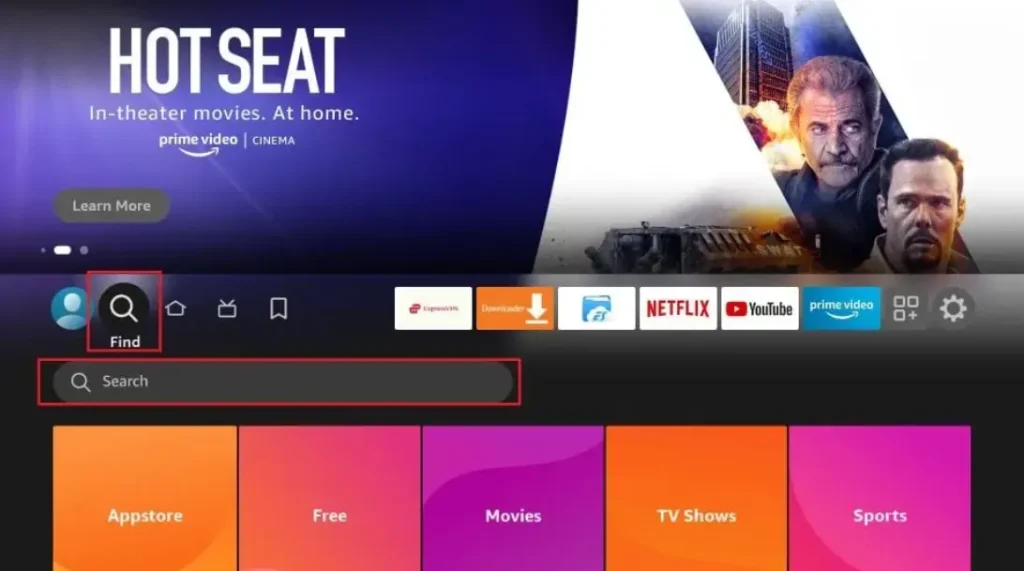
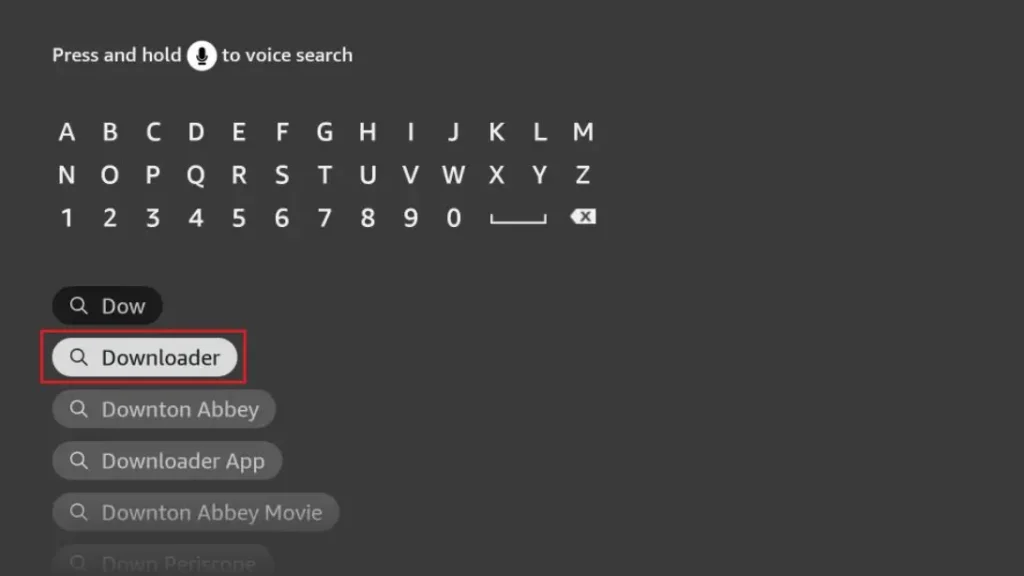
Step 5: Type “Internet Browser” and select it from the list
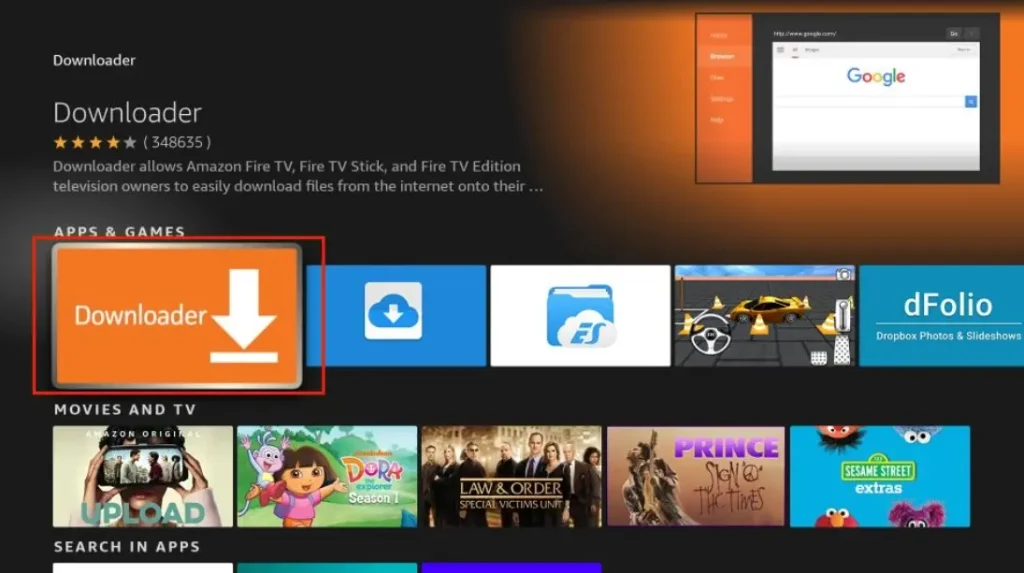
Step 6: Select the Internet icon When the below screen appears
Step 7: Click on “Download” and wait for the app to install
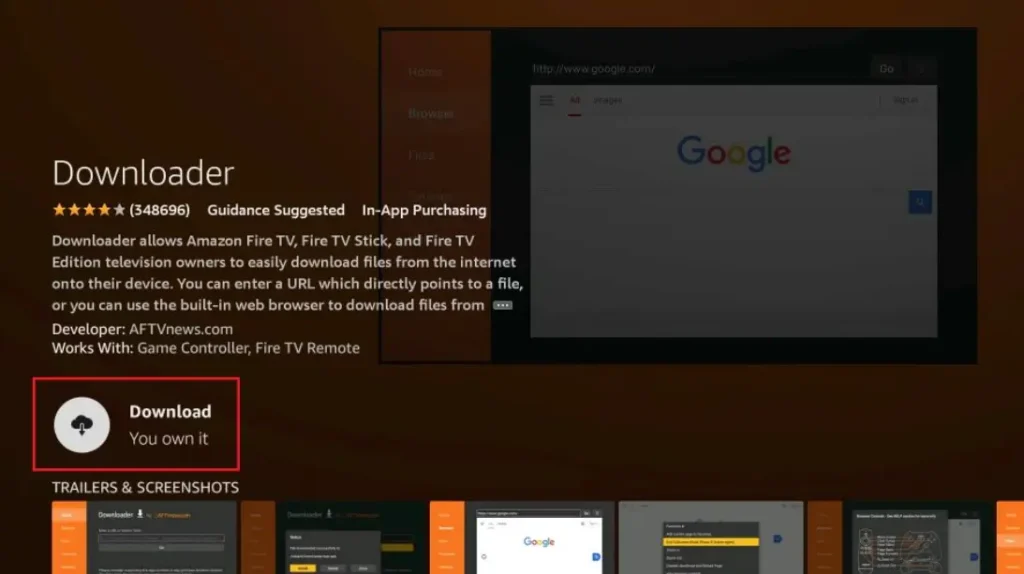
Step 8: Wait until the download is completed

Step 9: Select Open to access the installed browser
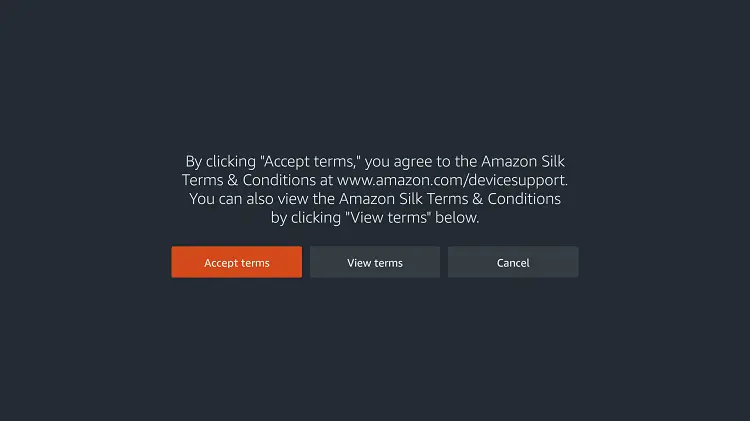
Step 10: Once the browser opens, click on Accept Terms
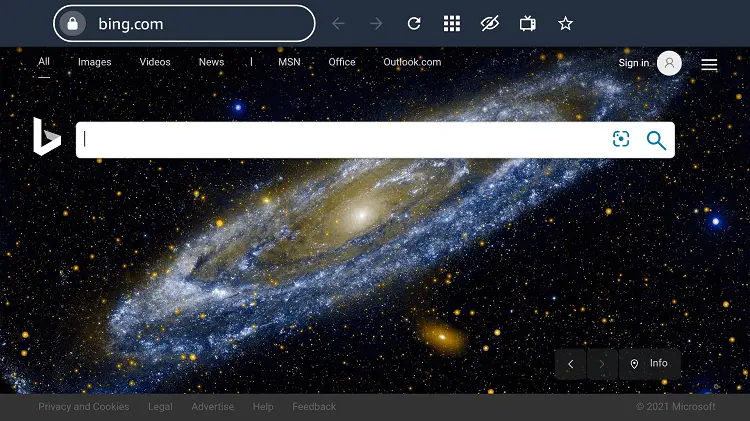
Step 11: Bing.com tab would be open at first.
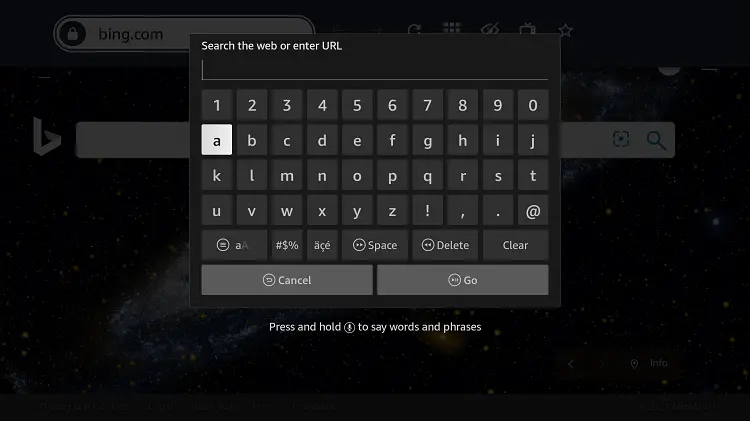
Step 12: Click on the address bar and type this URL “maxsport.one” and click Go
Step 13: This is the interface of the maxsport.com website.
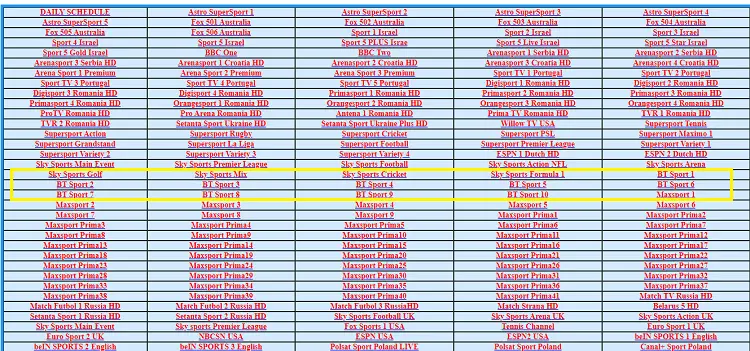
Step 14: Scroll down and choose the Sky channel (This website shows many options of Sky channels and other sports channels to stream free)
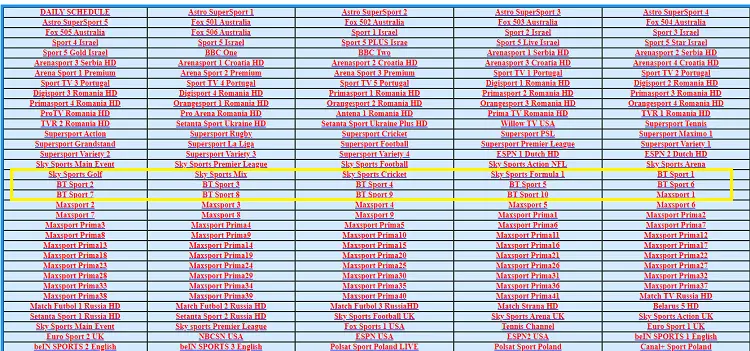
Step 15: This is your channel streaming live on your TV without spending a dime.
Congrats and Enjoy
2.2 How to Identify Your Sky Remote
Look at your remote closely. Check its visual differences. Is it thick or thin? Does it have a touchpad or buttons? Next, look at the button layout. A Sky Q or Stream remote has a “Home” button (showing a house icon). A Sky Glass remote has a “Sky” button instead. Look for a “Voice” button (with a microphone icon); this tells you it’s a newer remote. Older Sky HD remotes do not have these buttons.
Why correct identification matters. You would not use a map for London to navigate Edinburgh. In the same way, you need the right guide for your remote. Pairing steps for a Sky Q remote are different from a Sky Glass remote. Knowing which one you have saves you time and stops you getting frustrated.
How to Pair Sky Q Remote to Your TV
Pairing your Sky Q remote is like introducing it to your Sky Q box and TV. Once they know each other, they can work together. Here is how to do it.
3.1 Automatic Pairing Method
This is the quickest way to pair your remote to the Sky Q box. First, make sure your Sky Q box is turned on. Then, on your remote, press and hold the ‘1’ and ‘3’ buttons together. Hold them for about five seconds. You will see the small light on the remote flash. Soon, a message should appear on your TV screen saying “Remote control paired”. To also pair the TV volume control, press and hold the ‘Select’ (the big button in the middle) and the ‘0’ button together until the TV switches off.
3.2 Manual TV Setup for Sky Q Remote
If the automatic way does not work, you can set it up manually. On your Sky Q home screen, go to Settings, then Setup, and choose Remote Control. Select “TV” and then “Change TV Setup”. The system will ask for your TV brand. Use the arrows to find it and press Select. Finally, it will ask you to test the volume and power buttons. Press them to see if they work on your TV. If they do, select “Yes” to finish.
3.3 Common Issues During Sky Q Pairing
Sometimes, things do not go smoothly. If your remote is not responding, try changing its batteries first. If your TV brand is not listed, try choosing a similar brand or “Generic”. If you see a “Pairing failed” message, bring the remote closer to the Sky Q box (within 30cm) and try the ‘1’ and ‘3’ method again. Make sure nothing is blocking the path between the remote and the box.
How to Pair Sky Glass Remote to Sky Glass TV
The Sky Glass remote is different. It connects using Bluetooth, which is a wireless technology, like the one used for wireless headphones. It does not need a direct line of sight to the TV.
4.1 Bluetooth Pairing Explained
Older remotes use infrared (IR), which is a beam of light you cannot see. You must point it at the TV. Bluetooth is different. It creates a radio wave connection. This means you do not have to point the Sky Glass remote directly at the TV. You can control it from another room, as long as you are close enough.
4.2 Pairing Steps
The pairing process is simple. First, switch on your Sky Glass TV. Then, take your remote and press and hold the ‘1’ and ‘3’ buttons for about five seconds. Watch the light on the front of the remote. It will start flashing to show it is in pairing mode. Your TV screen should then show a message saying the remote is connected. To check, press the Voice control button (the one with the microphone) and say “Hello”. If it works, you are all set!
4.3 What to Do If Sky Glass Remote Won’t Pair
Do not worry if it does not connect. First, try to restart your Sky Glass TV. Unplug it from the wall, wait for 30 seconds, and plug it back in. If that fails, replace the batteries in the remote, even if they are new. Sometimes, a simple reset of the remote can help. To reset, hold down the ‘1’ and ‘3’ buttons for much longer, around 20 seconds, then try pairing again.
5. How to Pair Sky Stream Remote to Your TV
The Sky Stream remote works a lot like the Sky Q remote, but it connects to a small Puck device, not a big box.
5.1 Initial Setup Pairing
When you set up your Sky Stream Puck for the first time, the TV will guide you. After you plug in the Puck and turn on your TV, on-screen pairing instructions will appear. They will tell you exactly when to press buttons on the remote to connect it. Just follow the steps on the screen, and it should pair automatically.
5.2 Re-Pairing Sky Stream Remote
If your remote stops working later, you can re-pair it. First, hold down the ‘7’ and ‘9’ buttons together for ten seconds. This resets the remote’s connection. Then, press and hold ‘1’ and ‘3’ until the remote’s light flashes. The remote should now reconnect to the Puck via Bluetooth. Check your TV for a confirmation message.
How to Pair Sky Remote for TV Volume & Power Control
Your Sky remote can do two jobs: control the Sky box and control the TV itself. Pairing it for volume and power is a separate step.
6.1 Why Volume & Power Need Separate Pairing
Think of your remote as a translator. It speaks one language to the Sky box (to change channels) and a different language to your TV (to change volume). The TV control pairing teaches the remote the correct “language” for your specific TV brand. This is why you must do it separately from pairing the remote to the Sky box.
6.2 Step-by-Step TV Control Setup
On your Sky Q or Sky+ HD box, press Home on your remote. Go to Settings, then Setup, and select Audio Visual. Choose “TV Control”. The system will ask for your TV brand. Scroll through the list and select yours. It will then ask you to test the volume up/down buttons. Press them to see if your TV volume changes. Finally, it will ask you to test the power button. Press it to see if your TV turns off. If both work, select “Yes” to save the settings.
6.3 Supported TV Brands in the UK
Most common TV brands in the UK work with Sky remotes. The main ones include Samsung, LG, Sony, Philips, Panasonic, and TCL. If your brand is not on the list, try the “Generic” or “Other” option. This will send a standard signal that many TVs understand.
Sky Remote Not Pairing? Troubleshooting Guide
If your remote still will not pair, do not give up! This troubleshooting guide will help you fix most problems.
7.1 Basic Fixes
Always try these simple steps first. Replace the batteries with fresh ones. Restart your Sky box or TV by unplugging it from the wall for 30 seconds. Sometimes, move closer to your TV or Sky box, as distance can break the signal.
7.2 Reset Sky Remote
A reset clears the remote’s memory so it can start fresh. To reset most Sky remotes, hold the ‘7’ and ‘9’ buttons down together for about ten seconds. The light may flash. Then, re-pair the remote using the ‘1’ and ‘3’ method explained earlier in this article.
7.3 Fix Bluetooth Connection Issues
For Sky Glass or Sky Stream remotes (which use Bluetooth), remove interference. Move other wireless devices like speakers or routers away from your TV. A simple reboot of your Sky Glass TV or Sky Stream Puck can also fix Bluetooth problems by refreshing the connection.
7.4 When to Replace the Remote
Sometimes, a remote is just broken. If you see physical damage like cracks or liquid spills, you need a new one. If no LED light comes on when you press any button (even with new batteries), it is probably dead. If buttons are not responding at all, it is time for a replacement.
Can I Pair Sky Remote Without a Sky Box?
The simple answer is no. A Sky remote needs a Sky device (like a Sky Q box, Sky Glass TV, or Sky Stream Puck) for the initial setup and pairing. The remote is designed to work as part of the Sky system.
If you lose your Sky device, you cannot make the remote control a normal TV by itself. What can you do instead? You can use your TV’s original remote. You can also buy a universal remote from a shop. You can program a universal remote to work with many different TVs and devices.
9. How to Order a Replacement Sky Remote in the UK
If you need a new remote, Sky makes it easy to get one. The best way is to go to the Sky website. Log into your “My Sky” account and look for the help section about accessories. You can also contact Sky customer support by phone or online chat.
Sometimes, if the remote broke and you are a Sky customer, Sky might send you a replacement for free. If you lost it or damaged it yourself, you may have to pay a small fee. Once you order it, delivery in the UK is usually quick, often within a few days.
FAQs – Sky Remote Pairing
Why is my Sky remote flashing red?
A flashing red light usually means the batteries are very low. Take out the old batteries and put in new ones. This should stop the flashing.
Can one Sky remote control two TVs?
No, one Sky remote pairs with one Sky device (one box or one TV). You cannot use it to control two separate TVs at the same time.
Does Sky remote work with soundbars?
Not directly for volume. You usually pair the remote to control the TV volume. If your soundbar is connected to the TV, the TV will send the volume signal to the soundbar. Some modern setups may let you pair the remote directly to a soundbar in the Audio Visual settings.
How long does pairing take?
Pairing is very fast. It should only take 10 to 30 seconds from when you press the buttons to when you see the confirmation on your screen.
Is pairing different for Sky Glass?
Yes. Sky Glass uses Bluetooth pairing, which is different from the infrared pairing used for older Sky boxes. You do not need to point the Sky Glass remote at the TV.
Final Thoughts
Pairing your Sky remote is a simple process once you know how. Remember to first identify which remote you have. Then, follow the correct step-by-step method for Sky Q, Sky Glass, or Sky Stream.
If you have problems, try the basic troubleshooting steps like changing batteries and restarting your equipment. Most issues have an easy fix. However, if nothing in this guide works, do not struggle alone. Contact Sky support for help. They can guide you through the process or arrange to send you a new remote if yours is broken.