
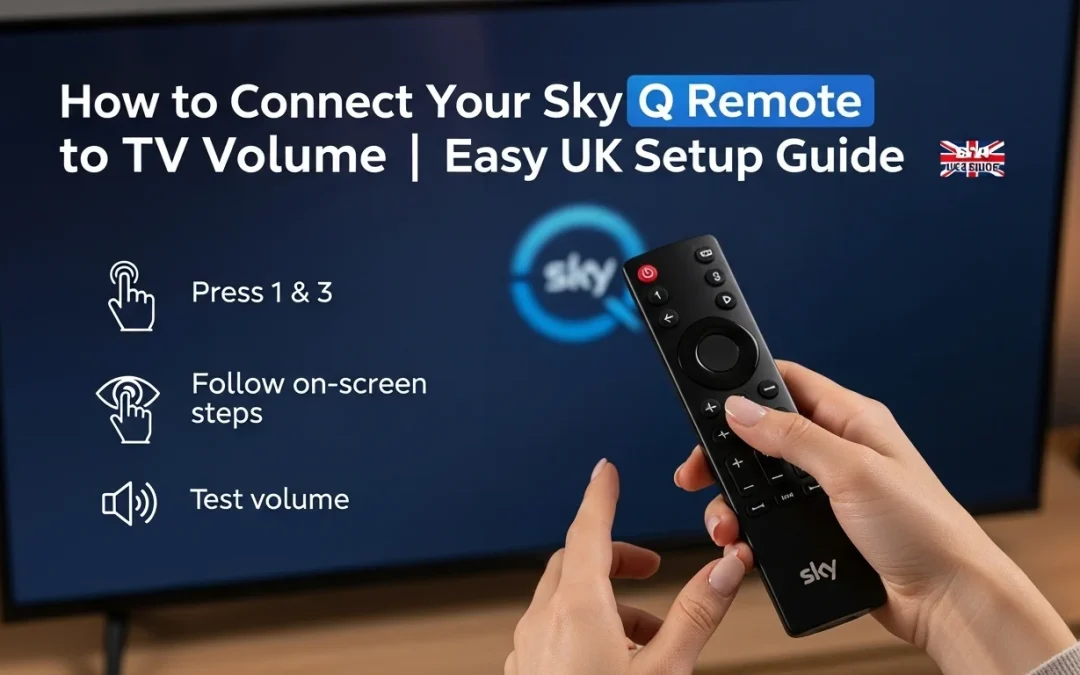
How to Connect Your Sky Q Remote to TV Volume | Easy UK Setup Guide
Sky Q is a popular television service in the UK. It lets you watch live TV, record shows, and stream movies all from a Sky Q box. To control this box, you use a Sky Q remote. This guide explains how to “connect Sky Q remote to TV volume”. This means teaching your Sky Q remote to also control the sound on your television, so you only need one remote for everything.

With over 10 years of experience in streaming technology, Amazon Fire TV, and smart TV platforms, Daniel specializes in Sky Glass, Firestick apps, and step-by-step methods to watch Sky content on Firestick devices in the UK.
 Add as a preferred source on Google
People often face common problems with this. The most frequent issue is that the volume buttons are not working on the TV, even though the remote changes channels. Sometimes the TV volume gets stuck and will not go up or down. You might also need to do this after buying a new TV or a replacement remote.
This guide will help you solve all these problems. We cover step-by-step fixes for getting your volume working. You will learn how to connect the remote automatically, what to do if that fails, and how to fix things if you have a soundbar. By the end, you will have full control of your TV’s sound with your Sky Q remote.
How Sky Q Remote Controls TV Volume (Important to Know
Understanding how your Sky Q remote works is the key to fixing volume problems. The remote is not just talking to one device; it is talking to two. Knowing the difference helps you solve issues much faster.
2.1 Difference Between Sky Box Control & TV Control
Your Sky Q remote has two jobs. Its first job is to control the Sky Q box. This lets you change channels, open the guide, and use apps. It does this using a signal called Bluetooth. The second job is TV infrared control. This is the part that changes the volume and turns the TV on/off. It uses an invisible beam of light (infrared) that must point at your TV.
Why pairing volume is separate from pairing the remote. When you first get your Sky Q, you pair the remote to the box so it can change channels. This does not automatically teach it how to talk to your TV. Your TV speaks a different “language” or code. You must do a separate setup to teach the remote your TV’s specific volume language. This is why your channel buttons work but your volume might not.
2.2 Supported TV Brands in the UK
The good news is that Sky Q remotes work with almost all TVs in the UK. The remote knows the special codes for most major brands. The main supported TV brands include:
- Samsung
- LG
- Sony
- Panasonic
- Philips
- Hisense / TCL
If your TV brand is on this list, the setup should be very easy. If you have a less common brand, the remote can often use a “generic” code that many TVs understand. You will learn how to try this in the setup steps.
How to Connect Sky Q Remote to TV Volume Automatically (Step-by-Step)
The easiest way to set up your volume is to let your Sky Q box do it for you. This automatic method searches for the right code for your TV. It is the best place to start.
3.1 Automatic Setup Method
Follow these steps carefully. First, make sure your TV and Sky Q box are both turned on. Grab your Sky Q remote and press the Home button (the one with the house icon). A menu will appear on your TV. Use the arrow buttons on your remote to go to Settings. In Settings, find and select Setup. Inside the Setup menu, choose Audio Visual.
Now, look for the option called Remote Control or “TV Remote Control Setup” and select it. You will see an option that says Find it for me or “Automatic Search”. Choose this. The Sky Q box will now send out test signals. It will ask you to test volume up/down. Press the volume buttons on your remote. If the volume on your TV changes, press ‘Select’ or ‘Yes’ on the screen. The box will save the correct code.
3.2 What Happens During Auto Setup
When you choose “Find it for me”, your Sky Q box starts a clever process. It begins a TV brand detection search. It sends out many different infrared codes, one after another, like trying different keys in a lock. It is waiting for your TV to respond.
During this infrared testing, you might see the volume level on your TV screen go up and down by itself. Do not worry, this is normal. The box is checking which code makes your TV listen. When it finds the right one, you will get a confirmation screen that says something like “Setup Complete” or “Volume Control Found”. This means your remote is now programmed for your TV’s volume.
ss TV
Before you start, it’s helpful to know about the two main types of reset. A soft reset is like restarting your computer. It fixes minor problems without deleting your apps or settings.
A factory reset is a bigger step. It returns your TV to how it was when you first bought it. A factory reset will remove all your installed apps and personal settings. It will also sign you out of your Sky account.
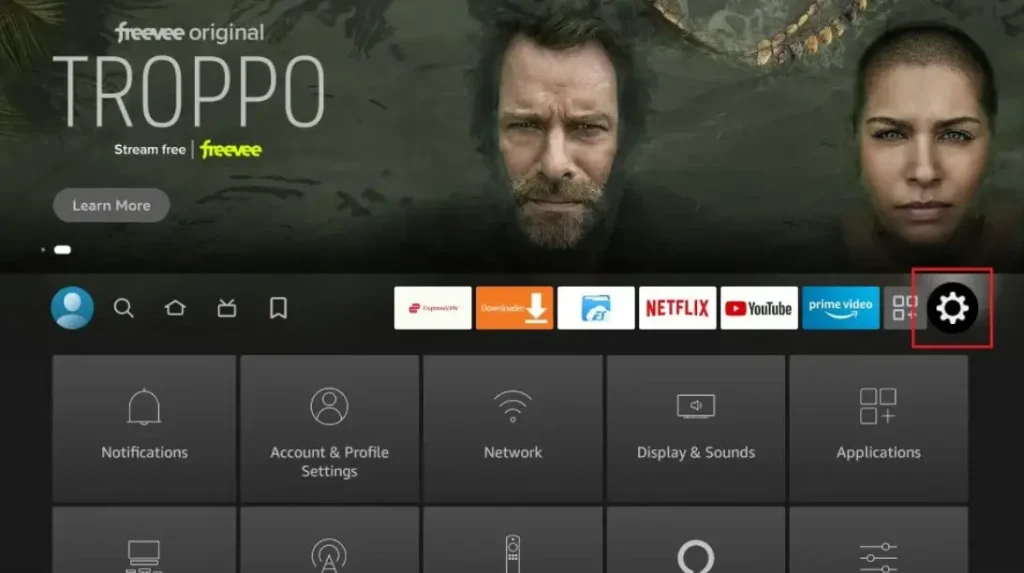
Step 3: Select the Find menu
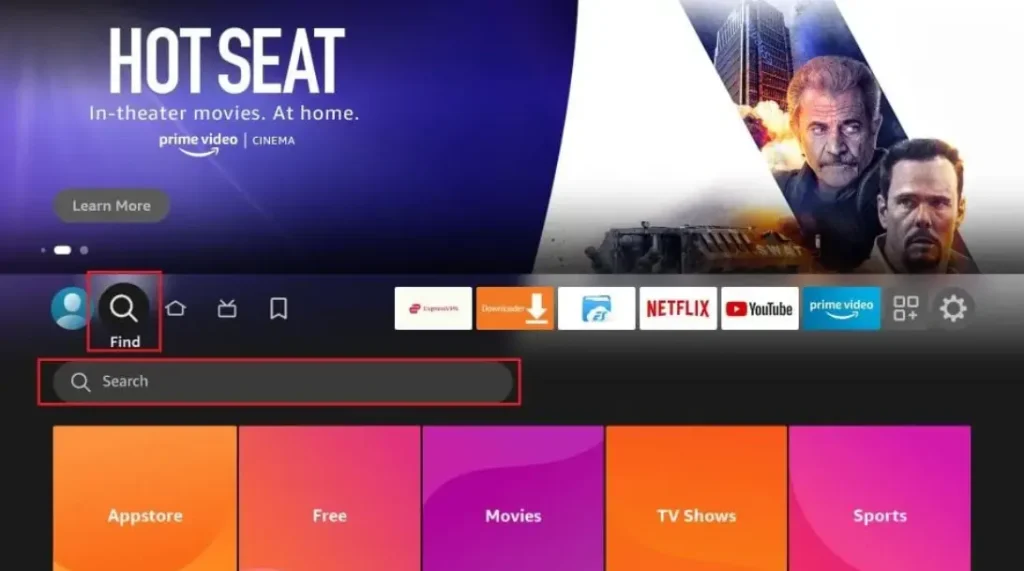
Step 4: Click on the Search option
Step 5: Type “Internet Browser” and select it from the list
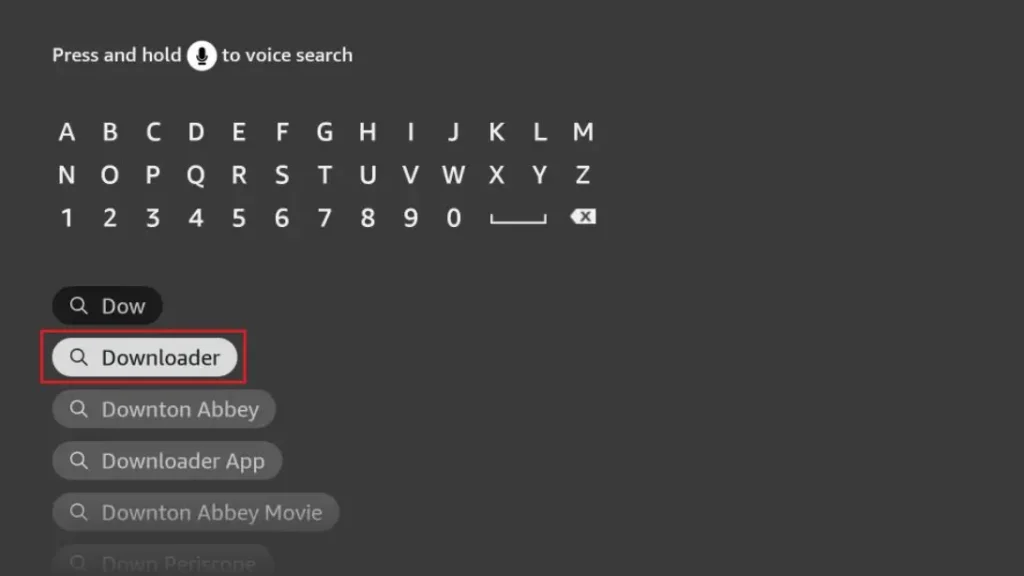
Step 6: Select the Internet icon When the below screen appears
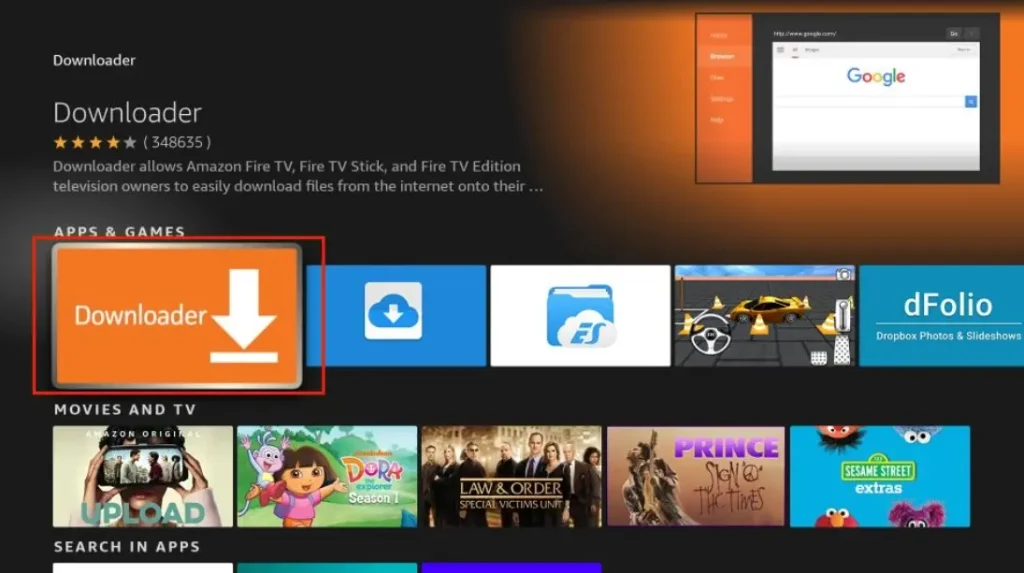
Step 7: Click on “Download” and wait for the app to install
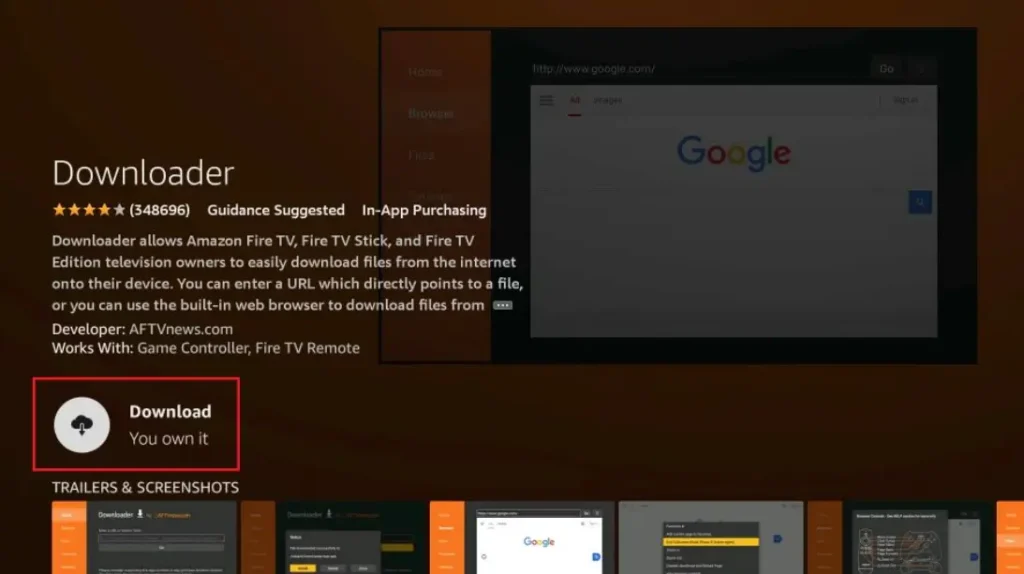
Step 8: Wait until the download is completed

Step 9: Select Open to access the installed browser
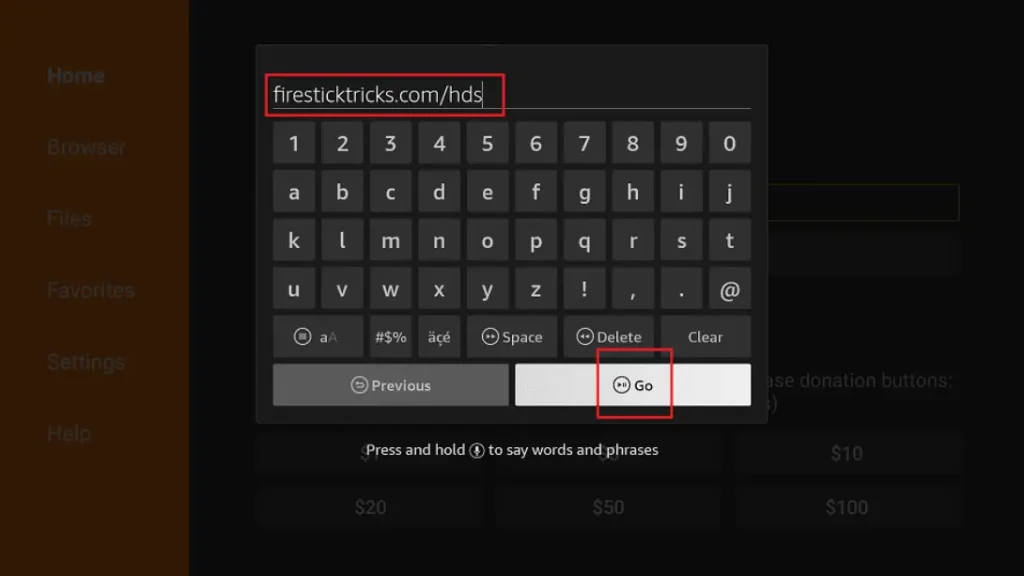
Step 10: Once the browser opens, click on Accept Terms
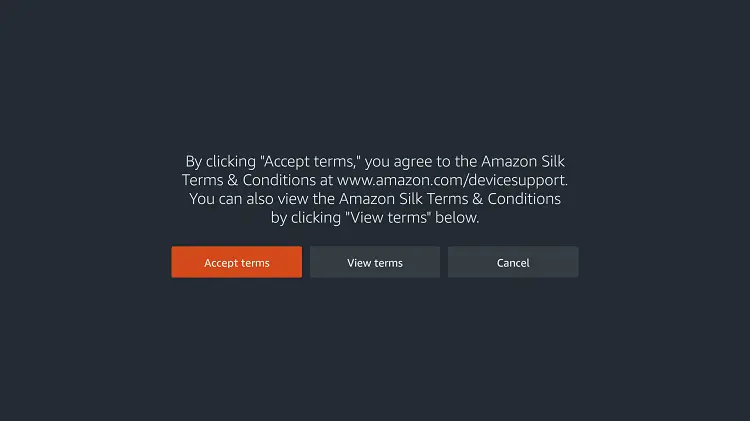
Step 11: Bing.com tab would be open at first.
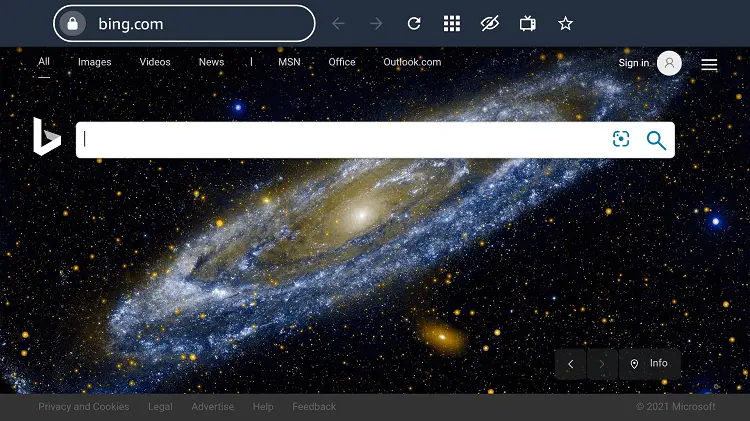
Step 12: Click on the address bar and type this URL “maxsport.one” and click Go
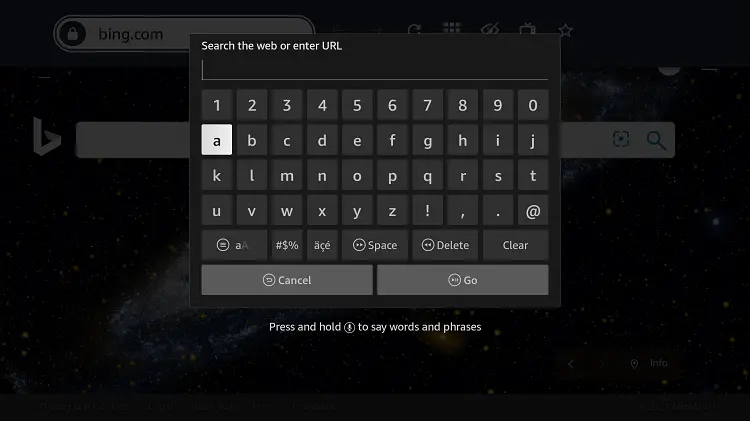
Step 13: This is the interface of the maxsport.com website.
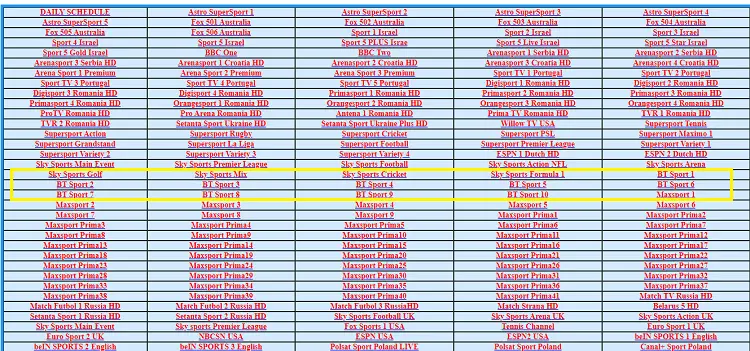
Step 14: Scroll down and choose the Sky channel (This website shows many options of Sky channels and other sports channels to stream free)
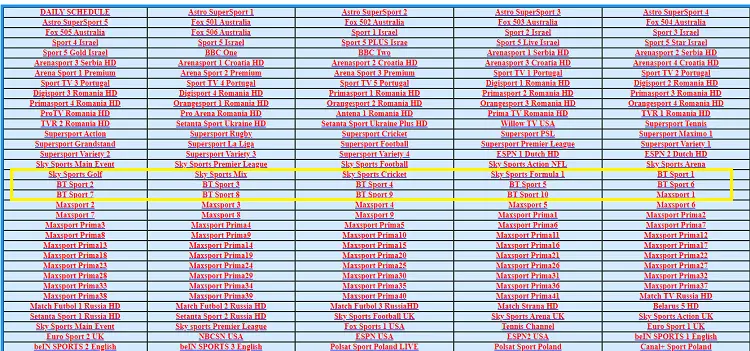
Step 15: This is your channel streaming live on your TV without spending a dime.

Congrats and Enjoy
How to Manually Connect Sky Q Remote to TV Volume
If the automatic search does not work, do not panic. You can manually tell your Sky Q box what brand your TV is. This is like looking up the right key for your lock in a manual.
4.1 Manual TV Brand Selection
You start in the same place. Press Home on your remote, then go to Settings > Setup. This time, look for Remote Control or “TV Remote Control Setup” and select it. Instead of “Find it for me”, choose the option for manual setup or “Select TV Manufacturer”.
A very long list of brands will appear on your screen. Use the up and down arrows on your remote to scroll through the list. Find and select your TV manufacturer (like Samsung or LG). Press ‘Select’. The box will now try the most common code for that brand. Sometimes, if it does not work, the box might ask you to try different codes. It will give you a list of 2 or 3 codes to test. Just follow the on-screen instructions to test each one until you find the one that operates your volume.
4.2 Testing Volume & Power Buttons
After you select a brand or code, the box will ask you to test the buttons. This is a very important step. First, it will say “Test Volume Up/Down”. Press the volume up button on your Sky remote. Look at your TV. Did the volume level go up? If yes, press ‘Select’ for Yes. Then test the volume down button.
Next, it might ask you to test the mute button. Press the mute button on your remote. Did the sound turn off? If yes, select Yes. Finally, it will ask you to test the TV power button. Point your Sky Q remote at the TV and press the power button (usually at the top of the remote). Did your TV turn off? If it did, you have successfully connected everything! Press ‘Select’ to confirm and finish the setup.
Connecting Sky Q Remote to Soundbar or AV System Volume
Many people use a soundbar or home cinema system for better sound. You can often make your Sky Q remote control the volume on these devices instead of the TV.
5.1 When You Should Connect to a Soundbar Instead
If your TV sound comes from a separate speaker, you should control that speaker’s volume. This is common with HDMI ARC / Optical setups. Here, your TV sends all sound to the soundbar. If you set the remote to control the TV volume, the soundbar might not listen. It is better to set the remote to control the soundbar volume directly. This gives you full control over the actual sound you hear.
5.2 Setup Steps for Soundbar Control
The steps are very similar to TV setup. Go to your Sky Q home screen and navigate to Settings > Setup > Audio Visual. This time, instead of “TV”, look for an option called Sound System or “AV Amplifier”. Select it.
You will then go through the same process. You can choose “Find it for me” for an automatic search, or manually choose the brand of your soundbar (like Sonos, Samsung, or Bose). The system will then ask you to test the volume buttons. Press volume up on your Sky Q remote. If the sound from your soundbar gets louder, you have successfully connected it! Confirm the test to save the setting.
Sky Q Remote Volume Not Working? Troubleshooting Guide
If you have tried setup and your volume still will not work, this troubleshooting guide will help. Work through these steps one by one.
6.1 Quick Fixes
Always try these easy solutions first. Replace the batteries in your remote. Weak batteries are the number one reason for infrared signals failing. Next, restart your Sky Q box and TV. Unplug both from the wall, wait 30 seconds, and plug them back in. Also, make sure you point the remote directly at the TV when using volume. The infrared beam needs a clear path. Do not point it at the Sky Q box for volume control.
6.2 Reset Sky Q Remote
If quick fixes fail, try resetting the remote’s connection. On your Sky Q remote, hold down the ‘7’ and ‘9’ buttons together for 10 seconds. Watch for the small LED flash confirmation light near the top. This clears the remote’s memory. After this, you need to reconnect the volume using the setup menu again. Go back to Settings > Setup > Audio Visual > Remote Control and run the “Find it for me” automatic setup once more.
6.3 Common Problems & Fixes
- Volume works on-screen but not physically: If the volume bar appears on your TV screen but the actual sound does not change, your remote is paired but the TV is not executing the command. This often means the wrong device code is saved. Go back into the setup menu and try a different code for your TV brand.
- Red light flashing on remote: This almost always means the batteries are completely dead. Replace them immediately.
- Wrong device responding: Is your soundbar turning off when you press volume? This means the remote is set to control the soundbar, not the TV. Go into the Audio Visual settings and change the control device back to “TV”.
How to Fix Sky Q Remote Volume Issues After TV Change
If you get a new television, your old remote settings will not work. You need to teach the remote the new TV’s language. The fix is simple: you must re-run the TV setup.
Go to Settings > Setup > Audio Visual > Remote Control on your Sky Q box. Choose “Set up remote” or “Change TV Setup”. This time, you will be selecting your new TV brand from the list. The automatic “Find it for me” search works very well for this. This process clears the old settings and replaces them with the new ones. It only takes a minute and will get your volume buttons working again.
Can Sky Q Remote Control TV Volume Without Pairing?
For normal use, pairing is required. The Sky Q remote does not know how to talk to your specific TV straight out of the box. It must be taught the correct infrared code through the setup process we have described.
There are limitations without setup. Without this pairing, the volume buttons will do nothing to your TV. They will only control the volume through the Sky Q box if you are listening through a headphone socket, which is very rare.
Are there any exceptions and workarounds? The only exception is if you use a separate sound system that connects directly to the Sky Q box. In that specific case, the remote might control the digital audio volume without extra setup. But for 99% of users with a normal TV, you must complete the TV volume pairing.
How to Get a Replacement Sky Q Remote in the UK
If your remote is broken or lost, you can order a new one. The simplest way is ordering via the Sky website. Log into your “My Sky” account and go to the help section. Look for “Accessories” or “Replace a remote”.
You might be eligible for a free replacement if the remote is faulty and you did not damage it. If you lost it, there is usually a small charge. Once ordered, UK delivery times are usually quick, often taking just 2-3 working days to arrive at your home.
FAQs – Sky Q Remote TV Volume Control
Why won’t my Sky Q remote change TV volume?
This is almost always because the remote is not set up to control your TV. You have paired it to the Sky Q box, but you have not completed the separate “TV Control” setup. Go to Settings > Setup > Audio Visual > Remote Control and follow the steps.
Can Sky Q remote control soundbar volume?
Yes, it can. Instead of setting it up for “TV” in the Audio Visual settings, set it up for “Sound System”. You can then choose your soundbar brand and control its volume directly.
Does Sky Q remote work with all TVs?
It works with almost all TVs sold in the UK. It has codes for all major brands like Samsung, LG, and Sony. For less common brands, you can use the “Generic” code option.
How long does volume setup take?
The setup is very fast. The automatic search usually finds the right code in less than a minute. The manual selection takes only about 30 seconds.
Can one Sky Q remote control multiple TVs?
No. One Sky Q remote is paired to one Sky Q box. That box is connected to one television. The remote cannot control the volume on a different TV in another room.
Conclusion
Let us do a quick recap of the volume connection steps. First, go to Settings > Setup > Audio Visual on your Sky Q box. Second, choose Remote Control and use the “Find it for me” automatic search. Third, test the buttons when prompted. That is usually all it takes!
Always try the troubleshooting tips like changing batteries and resetting the remote before you think about buying a new one. Most volume issues have a simple fix.
If you have tried everything and it still will not work, it is time to contact Sky UK support. They can help you over the phone. Remember, volume issues are usually easy to fix once you know where to look in the settings.