
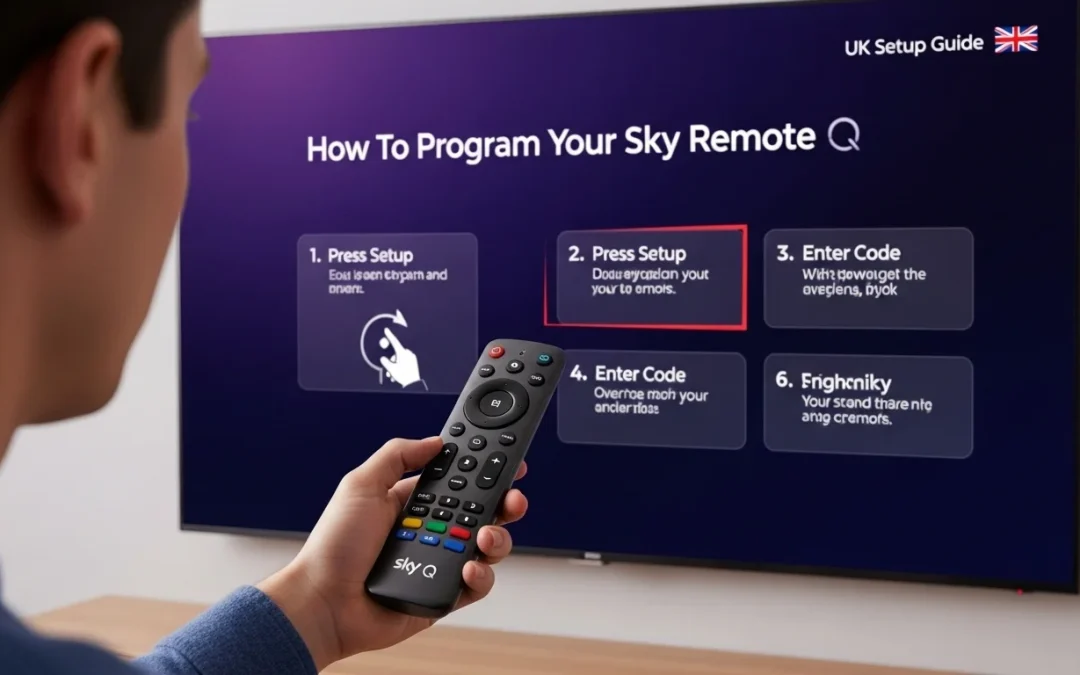
How Do You Program a Sky Remote to TV? | Easy UK Setup Guide
Sky TV is one of the main ways people in the United Kingdom watch television. It offers hundreds of channels, on-demand movies, live sports, and popular shows. To control your Sky TV, you use a special device called a Sky remote. This guide explains how to “program” that remote. Programming means teaching it to talk to your specific TV, a process also called pairing. When programmed correctly, your Sky remote can control both your Sky box and your TV’s volume and power.

With over 10 years of experience in streaming technology, Amazon Fire TV, and smart TV platforms, Daniel specializes in Sky Glass, Firestick apps, and step-by-step methods to watch Sky content on Firestick devices in the UK.
 Add as a preferred source on Google
You may need to program your Sky remote for a few common reasons. If you buy a new TV or a new Sky box, the remote will not know how to communicate with it yet. If you get a replacement Sky remote, it will be fresh out of the box and needs to be set up. Often, you might find the volume or power buttons are not working, even though the channel buttons are fine. Reprogramming the remote usually fixes this problem.
This guide will help you solve all these issues. We will cover all Sky remote types, from the latest models to older ones. You will get clear, step-by-step instructions for each type. By the end, you will know exactly how to program your Sky remote to work perfectly with your television.
Identify Your Sky Remote Type First
Before you press any buttons, you must know which Sky remote you have. Sky makes different remotes for its different services. The programming steps for a Sky Q remote are not the same as for a Sky Glass remote. If you follow the wrong guide, it will not work. Taking one minute to identify your remote first will save you time and frustration.
2.1 Sky Remotes Used in the UK
There are four main types of Sky remotes in UK homes. The Sky Q Remote comes with the Sky Q box. It is black, has a circular navigation pad, and dedicated buttons for Netflix and Sky Sports. The Sky Glass Remote comes with the all-in-one Sky Glass TV. It is thicker, has a circular touchpad, and lacks number buttons. The Sky Stream Remote is for the compact Sky Stream puck. It looks similar to the Sky Q remote but is slightly smaller. You might also have an older Sky+ HD Remote. These are often silver, have lots of numbered buttons, and a simpler, flatter design.
s TV
Before you start, it’s helpful to know about the two main types of reset. A soft reset is like restarting your computer. It fixes minor problems without deleting your apps or settings.
A factory reset is a bigger step. It returns your TV to how it was when you first bought it. A factory reset will remove all your installed apps and personal settings. It will also sign you out of your Sky account.
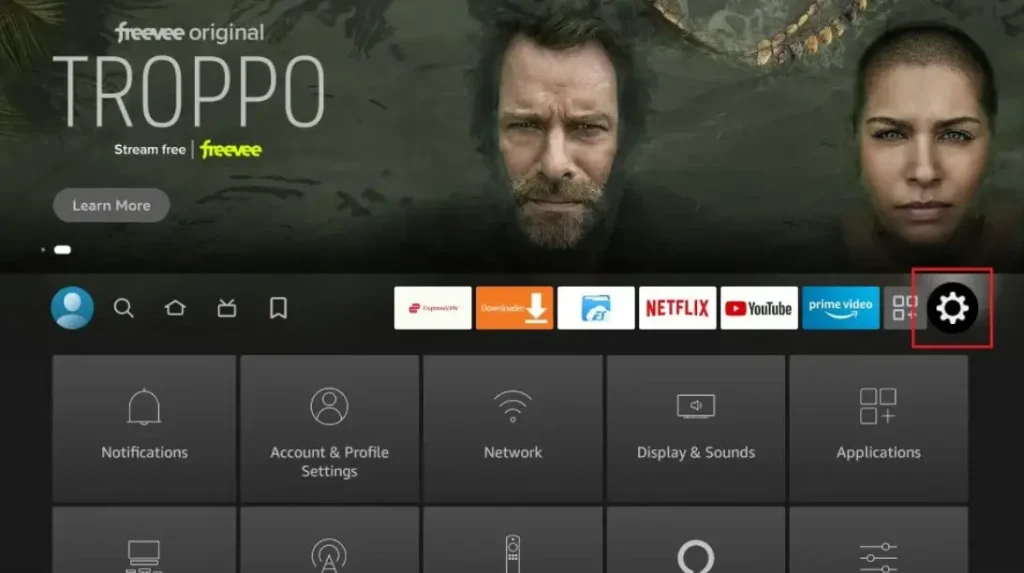
Step 3: Select the Find menu
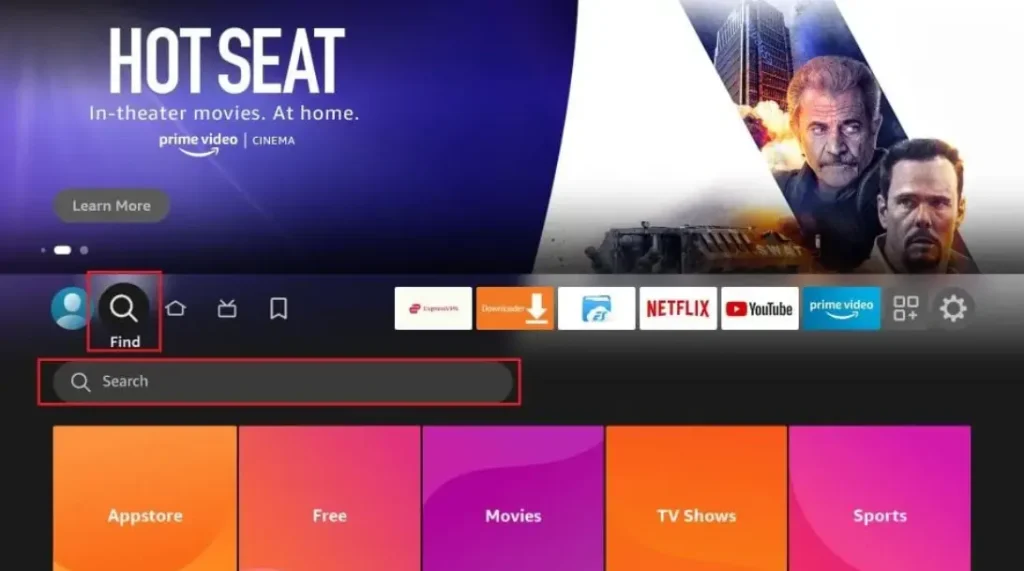
Step 4: Click on the Search option
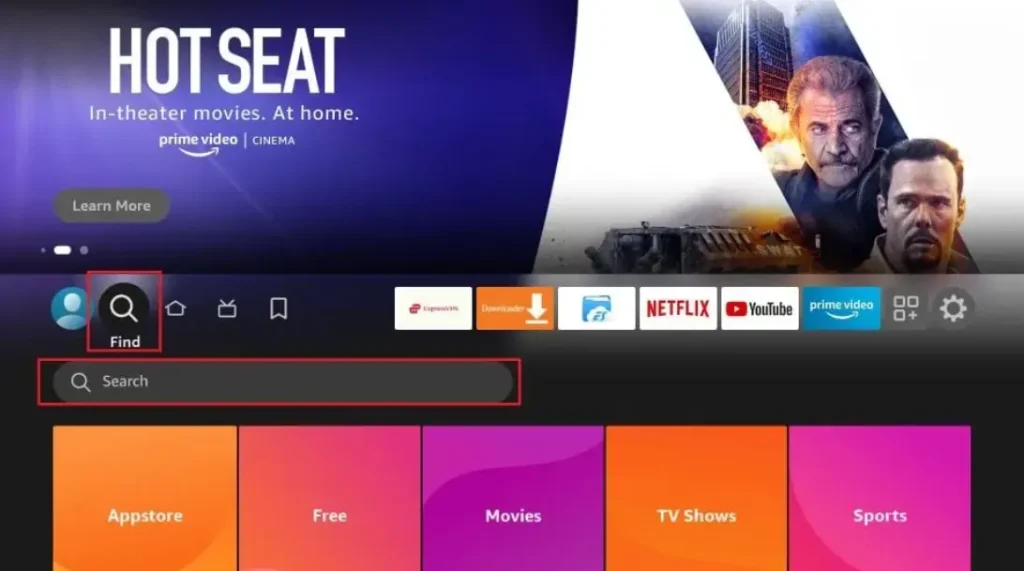
Step 5: Type “Internet Browser” and select it from the list
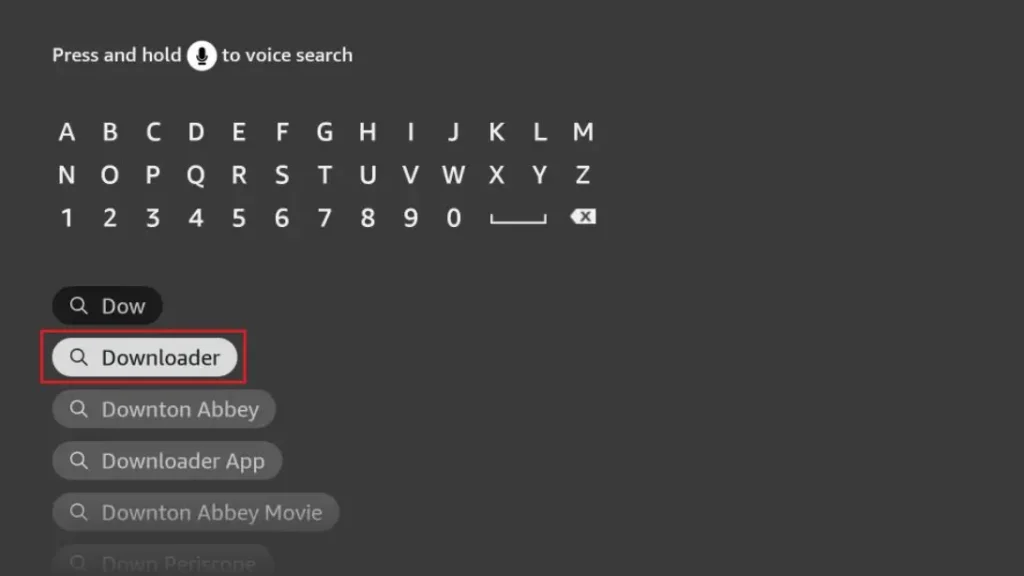
Step 6: Select the Internet icon When the below screen appears
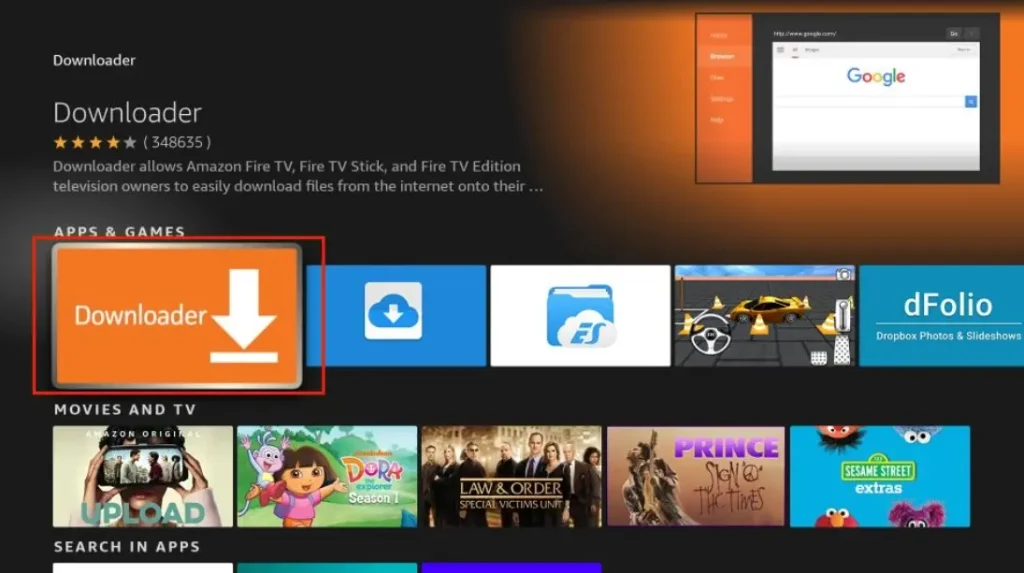
Step 7: Click on “Download” and wait for the app to install
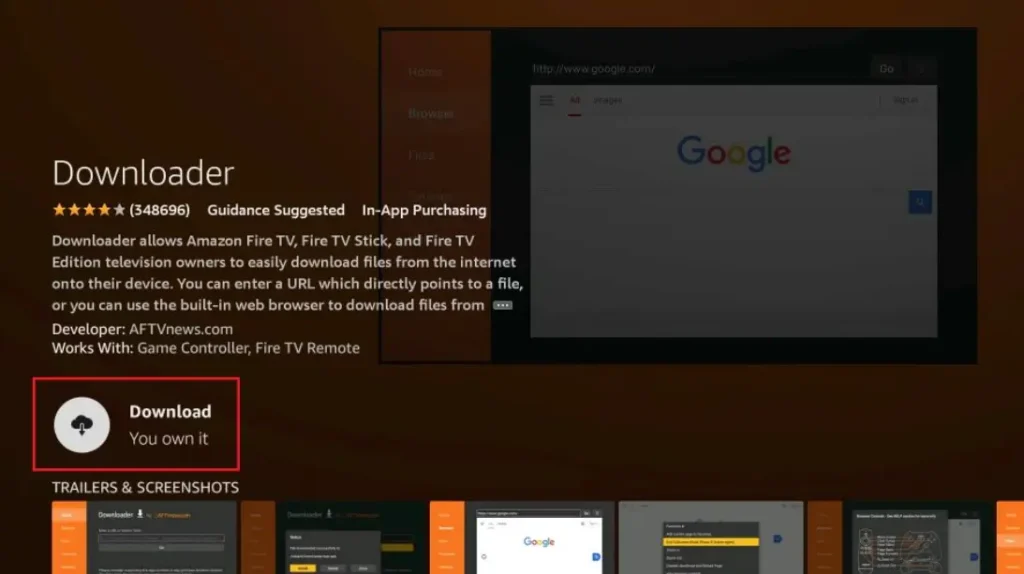
Step 8: Wait until the download is completed

Step 9: Select Open to access the installed browser
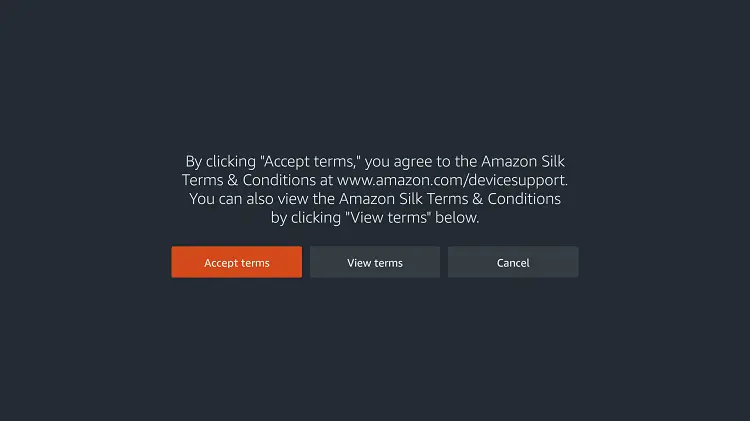
Step 10: Once the browser opens, click on Accept Terms
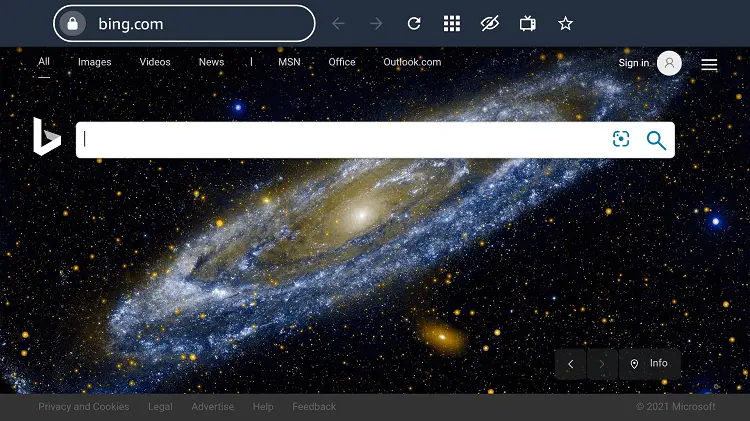
Step 11: Bing.com tab would be open at first.
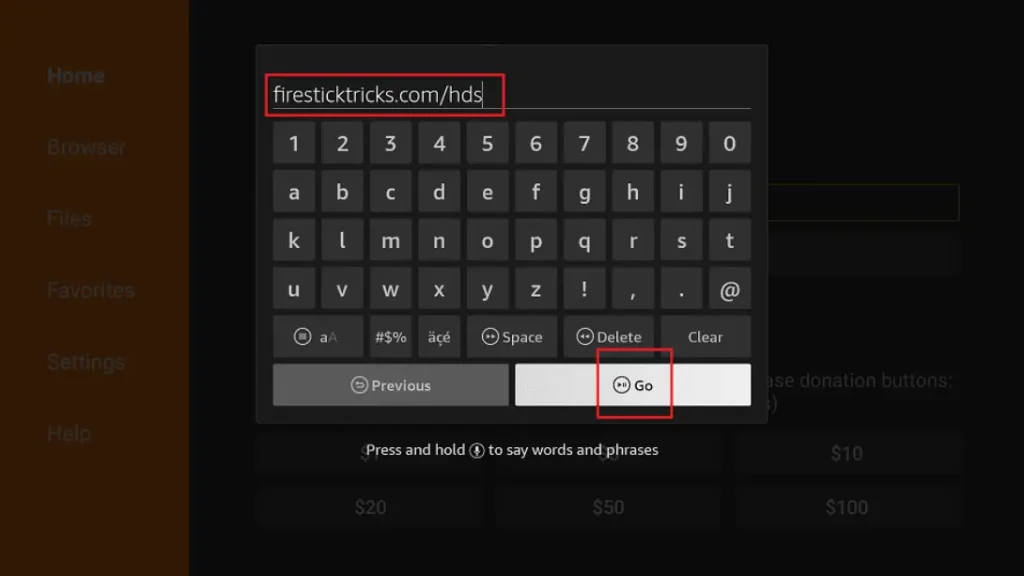
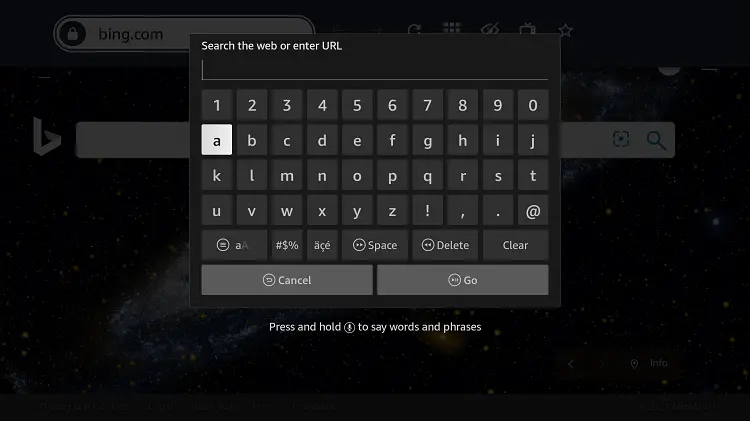
Step 12: Click on the address bar and type this URL “maxsport.one” and click Go
Step 13: This is the interface of the maxsport.com website.
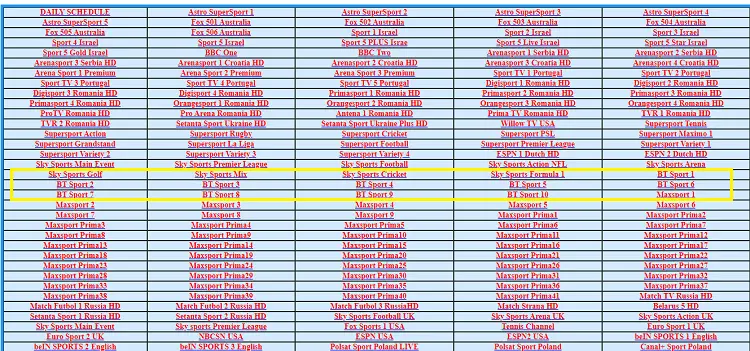
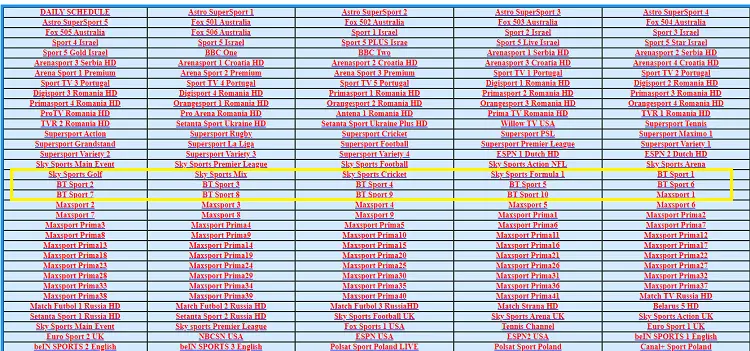
Step 14: Scroll down and choose the Sky channel (This website shows many options of Sky channels and other sports channels to stream free)
Step 15: This is your channel streaming live on your TV without spending a dime.
Congrats and Enjoy
2.2 How to Identify Your Remote
Look at your remote’s button layout and design. Does it have a voice control button with a microphone icon? If yes, it is a newer Sky Q, Glass, or Stream remote. Check for a “Home” button (a house icon); this is on Sky Q and Stream remotes. A Sky Glass remote has a large “Sky” button instead. Also, understand how it connects. Sky Glass and Stream remotes use Bluetooth, a wireless technology that does not require you to point the remote at the TV. Older remotes use infrared (IR), which needs a clear line of sight to the box.
Why the steps differ by remote type. Think of it like charging cables. You cannot use an iPhone cable to charge an Android phone. In the same way, you must use the correct programming method for your specific remote model. Using Sky Q instructions for a Sky Glass remote will not succeed. Correct identification is the key to a quick and easy setup.
How Do You Program a Sky Q Remote to Your TV? (Step-by-Step)
Programming your Sky Q remote is a straightforward process. It involves two main parts: connecting it to the Sky Q box and then teaching it to control your TV. Follow these steps in order.
3.1 Automatic Programming Method
This is the fastest way to connect your remote to the Sky Q box. First, ensure both your TV and Sky Q box are turned on. On your Sky Q remote, press and hold the ‘1’ and ‘3’ buttons together. Keep them held down for about five seconds. You will see the small light on the remote flash. Shortly after, an on-screen confirmation message should appear on your TV, saying “Remote control paired”. Finally, remember to test the volume and power buttons to see if they now control your television.
3.2 Manual TV Brand Setup
If the automatic method fails, you can set it up manually by telling it your TV brand. Press the Home button on your remote. Using the arrow buttons, navigate to Settings, then select Setup. From there, choose Remote Control. Select the option to set up or change your TV control. A long list of brands will appear. Scroll through and choose your TV manufacturer. Press Select. The system will then give you on-screen instructions to test the connection. Follow these prompts to see if the power and volume buttons now work.
3.3 Programming Sky Q Remote for TV Power & Volume
It is crucial to understand why TV control is separate. Pairing the remote to the box lets you change Sky channels. Programming it for TV control teaches it the special code to operate your television’s own functions. If your volume is not working, this separate step is almost always the fix. You usually complete this in the Settings > Setup > Audio Visual menu on your Sky Q box, under “TV Control”. Doing this ensures your one remote can handle everything.
How Do You Program a Sky Glass Remote to TV?
The Sky Glass remote is different because it controls a smart TV with Sky built-in. It uses modern technology for a simpler, more reliable connection.
4.1 How Sky Glass Remote Programming Works
This remote connects via Bluetooth pairing. Bluetooth is a short-range wireless connection, like the one used for wireless headphones or speakers. Because of this, no Sky box is required—the TV contains all the Sky electronics. A major benefit of Bluetooth is that you do not need to point the remote directly at the screen. You can control the TV from an angle or even another nearby room.
4.2 Programming Steps
Programming is usually very quick. First, turn on your Sky Glass TV. Take the remote and press and hold the ‘1’ and ‘3’ buttons for 5 seconds. Watch for the LED flashing confirmation light on the front of the remote. This means it is in pairing mode. Your TV screen should then show a message that the remote is connected. To make sure everything works, test voice control by pressing the microphone button and saying “Go to BBC One”. Also, test the volume buttons to confirm they control the TV’s sound.
4.3 If Sky Glass Remote Won’t Program
Do not worry if the connection fails. First, try to restart your Sky Glass TV. Unplug it from the wall for 30 seconds, then plug it back in. Next, replace the batteries in the remote. Fresh batteries solve many problems. If that does not work, you can reset the remote itself. To reset, hold down the ‘1’ and ‘3’ buttons for a very long time—around 20 seconds—then release them and try the standard pairing steps again.
How Do You Program a Sky Stream Remote to TV?
Sky Stream uses a small device called a Puck. Its remote is easy to set up and connects using Bluetooth for a strong link.
5.1 First-Time Programming
When you first set up your Sky Stream Puck, the process is guided for you. After connecting the Puck to your TV and turning it on, on-screen pairing during setup will begin. Clear instructions will appear on your TV telling you exactly what to do. Simply follow these steps to establish the Bluetooth connection. The remote will pair automatically as part of this initial setup, making it very simple.
5.2 Re-Programming Sky Stream Remote
If your remote later becomes unresponsive, you can reconnect it. First, you need to reset the remote’s link. To do this, hold down the ‘7’ and ‘9’ buttons together for about ten seconds. You might see the LED flash. Then, pair it again by holding ‘1’ and ‘3’ until the light flashes. The remote should now reconnect to the Puck. Finally, test navigation and volume to ensure all buttons are working correctly.
Programming Sky Remote to Control TV Volume & Power
A common issue is a Sky remote that changes channels but cannot adjust the TV volume. This is because controlling the TV requires its own separate programming step.
6.1 Why Programming Is Needed for TV Controls
Your TV and your Sky box are two different devices. They often understand different command “languages.” This is about TV brand compatibility. Your Sony TV uses different signals than an LG TV. The remote must be programmed specifically for TV control, separate from its programming for the Sky box. This is why the volume buttons might not work straight away.
6.2 Step-by-Step TV Control Setup
On your Sky Q or Sky+ HD box, press Home on your remote. Go to Settings, then Setup. Now, select Audio Visual. Choose the option for TV Control or “Change TV Setup”. A list will appear. Scroll through and select your TV brand (e.g., Samsung, LG). The box will then ask you to test the volume and power buttons. Press the volume up button on your Sky remote. If your TV volume increases, press ‘Select’ for Yes. Then test the power button. If it turns your TV off, press ‘Select’ for Yes again. The setup is now complete.
6.3 Supported TV Brands in the UK
Most major TV brands sold in the UK are supported. These include Samsung, LG, Sony, Panasonic, Philips, and Hisense / TCL. If your exact TV brand is not listed, do not worry. Try selecting “Generic” or “Other”. This sends a standard signal that many televisions will understand and respond to
Sky Remote Not Programming? Troubleshooting Guide
If your remote refuses to program, do not give up. This guide will help you solve the most common problems.
7.1 Quick Fixes
Always start with these simple solutions. Replace the batteries with brand new ones. Weak batteries are the number one cause of remote issues. Sometimes, just move closer to your TV or Sky box. Being too far away can weaken the signal. Also, try to restart your Sky box or TV by unplugging it from the wall for 30 seconds. This can clear minor electronic glitches.
7.2 Reset Sky Remote
A reset clears the remote’s memory and can fix strange behaviour. For most Sky remotes, hold down the ‘7’ and ‘9’ buttons for 10 seconds. Wait for the LED flash confirmation. This tells you the reset is done. You must then program the remote again using the ‘1’ and ‘3’ method as if it were new. This often solves persistent connection problems.
7.3 Common Problems & Fixes
Look for these specific signs. If your remote is flashing red, it almost certainly means the batteries are dead and need immediate replacement. If the volume buttons are not responding, you have not completed the separate TV control setup—go to Section 6. If the power button is not working but channels change, the same TV control setup needs to be done or redone.
Can You Program a Sky Remote Without a Sky Box?
This is an important question. For a Sky Q remote, the answer is generally no. It has limitations because it is designed to work with the Sky Q box. The remote needs the box to access the programming menus and send the correct signals to your TV.
The Sky Glass exception is the only case. Since the Sky Glass TV has everything built in, its remote programs directly to the TV itself. No separate box exists.
What can you do if you only have a remote and no box? Your best options are to use your TV’s original remote that came with it. Alternatively, you can buy a universal remote from any high-street electronics shop. Universal remotes can be programmed to work with almost any television brand.
How to Get a Replacement Sky Remote in the UK
If your remote is lost or broken, getting a new one is simple. The easiest method is ordering via the Sky website. Log into your “My Sky” account, visit the Help & Support section, and look for “Replace a remote” or “Accessories”.
You can also use Sky customer support options. You can call them on the phone for help. If the remote stopped working through no fault of your own, Sky might send a free replacement. If you lost it, there may be a small fee. Once ordered, UK delivery times are typically very fast, often within 2-3 working days.
FAQs – Programming a Sky Remote to TV
How long does it take to program a Sky remote?
It is very quick! The actual programming process usually takes between 10 and 30 seconds from when you press the correct buttons.
Why won’t my Sky remote control TV volume?
This is the most common issue. It means the remote is programmed to the Sky box but not to your TV. You must complete the separate “TV Control” setup in your Sky box’s Settings menu (see Section 6).
Can one Sky remote control multiple TVs?
No. One Sky remote pairs with one Sky device (one box, Glass TV, or Stream Puck). It cannot control two separate televisions at the same time.
Does Sky remote work with soundbars?
Not directly. You program the remote to control your TV’s volume. If your soundbar is connected to your TV (via HDMI ARC or optical cable), the TV should then pass the volume signal to the soundbar automatically.
Is programming different for Sky Glass?
Yes, it is different. Sky Glass uses Bluetooth pairing directly with the TV. Sky Q and older remotes use infrared to talk to a separate box and require an extra step to control the TV’s own functions.
Conclusion
Let’s do a quick recap of the programming steps. First, identify your remote. Second, use the correct guide for Sky Q, Glass, or Stream. Third, if the volume does not work, remember the separate TV control setup in your Sky box’s Settings menu.
Always try the troubleshooting tips like changing batteries and resetting the remote before you consider buying a new one. Most problems have a simple solution.
However, if nothing works after trying all these steps, it is time to contact Sky UK support. Their team can provide further assistance. For UK users, remember that programming your Sky remote is designed to be a simple task, so help is always available if you need it.